How to log into your Sawyer account
First, set up your Sawyer account.
You may have already completed this step, and if so you can skip to the next section!
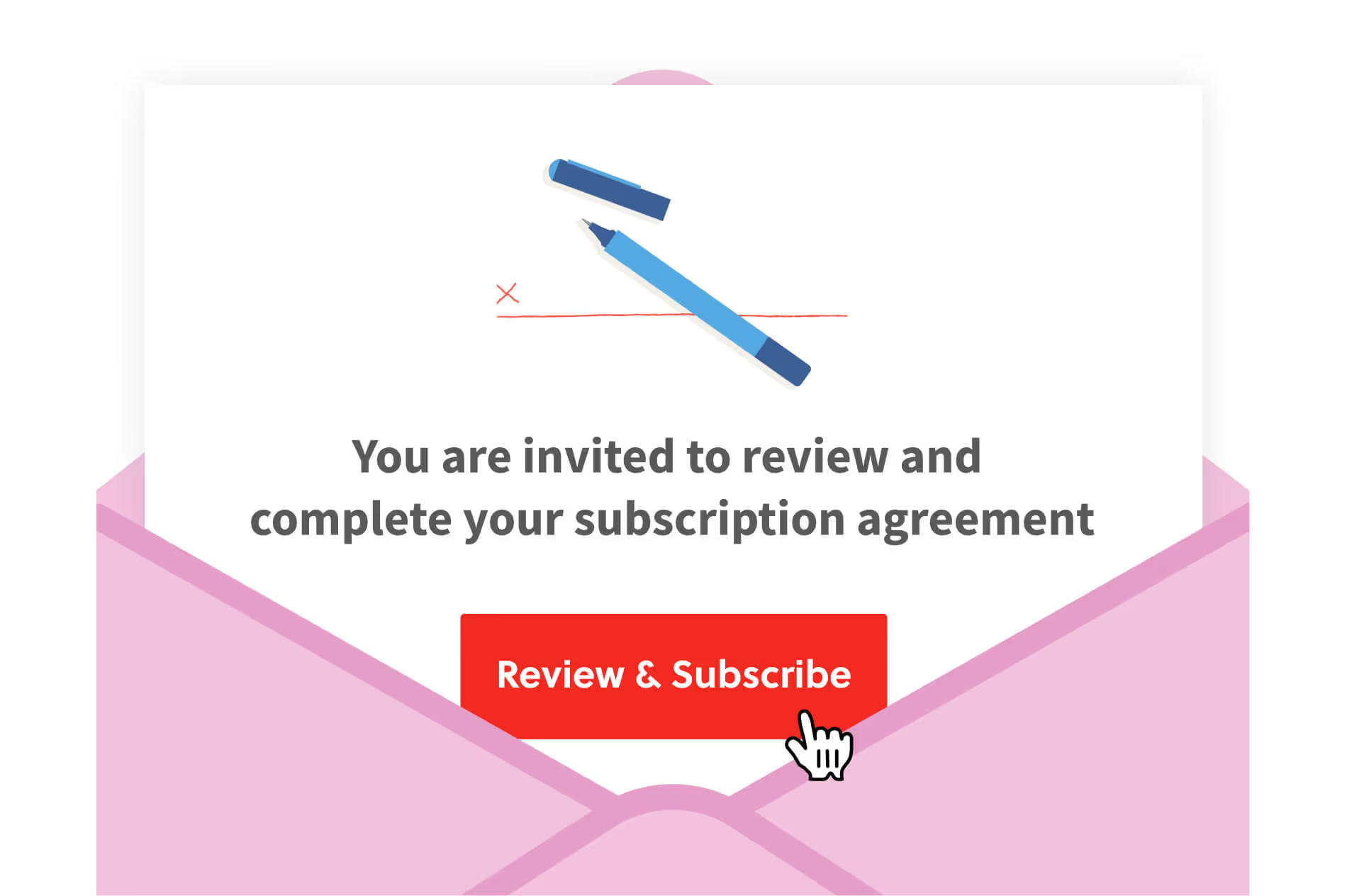
If you haven’t done this yet, check your inbox! You’ll get an email with the subject line “Complete Your Subscription” inviting you to accept access to your account and sign your agreement. This is where you’ll click Review & Subscribe to set up your subscription.
As soon as you complete this step, you’ll be able to access your full account and start the onboarding process! You’ll hear from us shortly after this, but in the meantime we encourage you to enter your banking and Stripe details here.
Log in from Hisawyer.com/for-business/
If you need to log in on a new device, go to hisawyer.com/for-business/ and click Log In in the top right navigation. Enter your email and password, or click forgot password to set up a new one.

Once you're logged in, we recommend bookmarking hisawyer.com/portal in your browser so you can access your account easily!
This is also a great time to make your account even more secure by setting up two-factor authentication.
If you are on our Marketplace and want to get to your Sawyer for Business portal, click the computer icon in the upper right corner of your screen. You’ll know you’re on our Marketplace when you see activities from other businesses we work with.
Review our Help Center article for more support on logging in.


