5
Making edits
There are key icons to look for when making edits: a pencil icon, three dot icon, or drop down. Browse the list below to find what you want to edit and where you can do so.
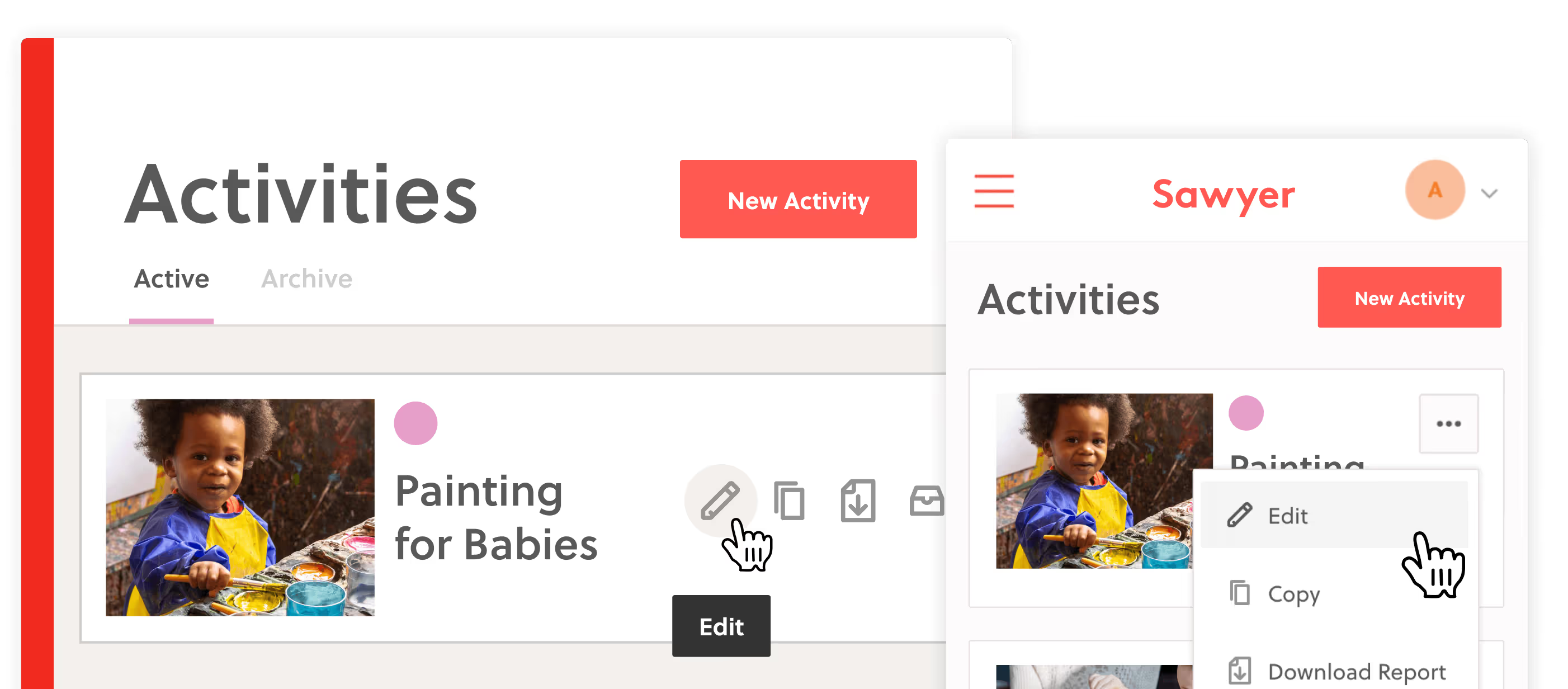
Listings
Listings are the building blocks of your programs so making edits will affect the corresponding scheduled activities.
- Basic activity details: Name, color, photo, any description, age range, in-person or online, and more!
- Form Fields: Profile Fields for the Launch plan, Custom Fields for Grow and Scale plans.
- Locations: This could be a physical location or online.
- Instructors: Email address and details including their bio.
- Cancellation Policies: This displays on the registration page and order confirmation email.
- E-Signature Agreements:* For Waivers, Photo and Medical Releases, and Code of Conduct forms.
Schedules
Schedules refers to specific scheduling types and controls what displays to customers as they register.
- Click on the schedule timeframe then select the Actions drop down to edit the timeframe name, dates and holidays.
- Use pencil icons for each scheduled activity to edit details like day of week, times, capacity, widget tags, pricing, add-ons and activity-specific sibling discounts.
- Once you start taking registrations for a program, you’ll need to move students before being able to make additional adjustments. Please review our Help Center article on updating a schedule that has bookings.
- If you are just looking to edit one day of the activity, you can edit the instance by going to the roster of that class day through the Upcoming tab then click the three dot icon in the upper right corner and select Edit Instance.
Financials
- Coupons: Please note that coupon codes cannot be edited. If you need to make a change to a coupon, deactivate the existing code then create a new one with the same code and the new parameters.
- Auto Discounts: You are able to edit Auto Discount parameters, but you may want to make a new one instead so that you can easily run reports on each variation.
Products
- Class Packs: If you change what activities a pack applies to, determine if you want the change to apply to packs that have been purchased by checking the corresponding option.
- Parties*: You can edit party details for each party type and edit details of party requests.
- Memberships*: Make sure to click on Plans to see your membership plans. Note that membership plans cannot be edited once they have a member, see more info here.
Settings
- Age Restricted Registration: Choose if you want to alert or block registrants who are outside of an activity's age range
- Order Confirmation Notes: Add your own message to the standard order confirmation email
- Custom Payment Methods: Control the custom payment methods you want to utilize, including ACH Bank Payments
- Integrations: Connect your Sawyer account to other apps like Mailchimp and Constant Contact
Widget Embeds
- Self Embed Widgets: Now you can create and edit widget codes for your website directly in your account!
* features marked with an asterisk are only available in Grow and Scale plans
Review our Help Center article for more support on making edits on Sawyer.


